Connect an Alpaca paper account
The guided Connect wizard step by step. The four illustrated Alpaca steps, what Test connection checks before anything trades, and what you see once the book is linked.
- Who it is for
- New to Bellwether
- Reading time
- 11 min read
- Updated
Bellwether trades your own Alpaca paper account. You keep the account; Bellwether gets an API key pair for it (or, where the operator has enabled it, a sign-in token from Alpaca) and nothing else. It all happens on one , Connect your broker, which a new book opens on its own until a connection is verified. The wizard has five stops along the top: Broker · Set up · Test · How it trades · Done.
Broker
Pick the broker. Alpaca is the one you can connect today, and one line under it says more brokers come later (their names are behind the underlined words). Set up Alpaca sits directly under the choice. Beside the step (under it on a phone), two short lists are always in view, These keys can and Never: it will read the , place orders only after every risk check passes (and ask you first above your ), and cancel its own unfilled orders when their window ends; it will never touch a , move money, or show the secret again. The same list sits beside the paste card later.
If this book is already connected, the same step shows what is connected (masked account, API keys or Sign in with Alpaca) with a Disconnect button. Disconnecting is a protected action and trading on the book stops until a new connection is verified; it is also the only way to rotate keys or switch between keys and signing in with Alpaca, because the server refuses a second connection while one exists.
Set up: four illustrated cards
Each card has one or two sentences, a "watch out" line where it matters, and a button that opens the right Alpaca page in a new tab; the picture of what you are looking for sits beside the words (under them on a phone): Alpaca's own page, redacted and dated, where we have one, our drawing otherwise, and the caption says which. Back and Done, next move between cards, and the line above each title says which part of Set up you are on.
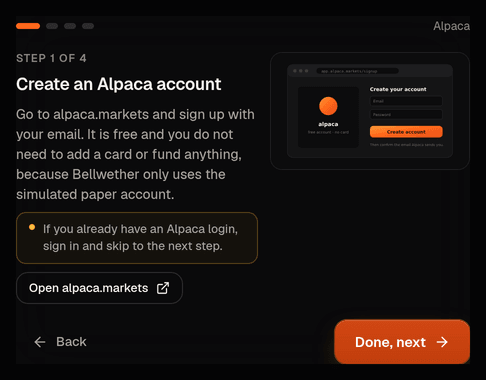
- Create an Alpaca account at alpaca.markets. Free; no card and nothing to fund. If you already have a login, sign in and move on.
- Switch the dashboard to Paper. Open the account menu at the top left of the Alpaca dashboard: under PAPER ACCOUNT pick a paper account, or press New Paper Account (each paper account starts with $100,000 of simulated cash, real prices, and its own keys). A blue banner then says "You are on Paper Trading, no real money is being used." Keys made while a live account is selected do not work here: Bellwether spots a live account and sets the connection aside, unused, on purpose.
- Generate API keys. On the dashboard's Home page, right column, under the order ticket: the API Keys panel, then Generate (or Regenerate). You get a Key (paper ones start with PK; Bellwether calls it the API Key ID) and a Secret. The secret is shown once: copy both before you close the panel; if you lose it, regenerate the pair. The API item in Alpaca's left menu opens their documentation, not your keys.
- Paste them here. The last card is the form, with Alpaca's exact field names. A value with a space or line break in it, one that picked up a stray character on its way here (copied through a chat or notes app: the sentence under the field names the box and the position, "That API Key ID has a character that is not a plain letter or digit at position 7", so you know where to look without the character being repeated back), a Key ID that starts with AK (a live key) or CK (an OAuth app's client id) is flagged under the field before anything is sent, and Test connection stays off until it is fixed. There is no Paper / Live choice to make: paper or live is detected, not chosen. Bellwether asks Alpaca which environment the keys belong to (paper first, then live) and labels the connection; a live account is saved but set aside, unused, and nothing is ever placed with it. The will-and-won't list is here again. Press Test connection.
Test connection is a protected action, so it asks for your unless you entered one in the last 30 minutes. Bellwether runs the same check as the form once more (both values present, plain letters, digits and symbols only, nothing that cannot be sent to Alpaca), encrypts the pair, keeps it as not yet tested and clears the Secret Key box; the API Key ID stays in its box (Alpaca shows it openly) so a failed test only needs the secret pasted again. This step never contacts Alpaca and never shows the secret back to you: from here on every screen shows the key masked, as PK••7Q2M.
Connect with Alpaca (sign-in instead of keys)
Where Connect with Alpaca has been switched on for this Bellwether, cards 2 and 3 carry a "skip to Connect" line and the last card is titled Connect with Alpaca: a button sends you to Alpaca's own sign-in, you approve Bellwether for paper trading, and you come back to the wizard on the Test step with the connection already stored as pending. There are no keys to copy, and the token is sealed exactly like a key pair. Paste API keys instead stays underneath for anyone who prefers keys. If the button is not there, it has not been switched on here and keys are the way in. If Alpaca sends you back with a problem (you cancelled, the ten-minute link expired, the app is not configured), the last card says so in a sentence and offers the button again.
Test
Testing the connection with Alpaca… is the real check. The , the one part of Bellwether allowed to talk to the broker, picks up the new connection within about 30 seconds, decrypts the keys, works out which environment the credentials belong to (the paper endpoint first, then live), and asks Alpaca for the account and the market clock, read-only. The screen follows the verdict, usually in under half a minute:
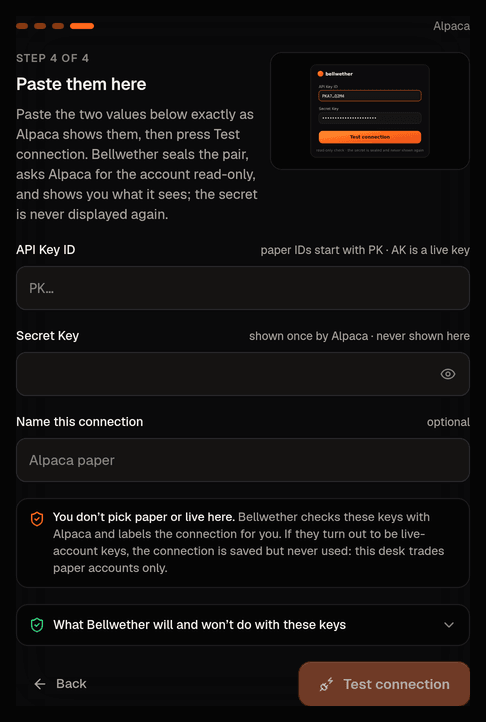
- Connection works. A Detected from your keys callout says what Bellwether found (A paper account, simulated cash, read from Alpaca, not chosen here), then a list shows what it can see, and all it will ever show: the masked account number, the status (Verified, ready to trade paper), what Alpaca says about the account, equity and cash (one line says these appear after the first account sync, about a minute, until they do), the masked key, how it is connected, and the connection's name. If Alpaca reports the account as anything but active (a new account is occasionally held for review), a note says so: the keys work and the connection is saved, but Alpaca will refuse orders until the account is active. There is nothing to redo here. Press Continue to how it trades.
- The test failed. You are back on the paste card with a fix card in plain language: what happened, whether it is about your keys, and the one thing to do about it. The API Key ID you pasted is still in its box and the cursor is in it; only the Secret Key box is empty. There is no technical line to read or pass on: the card is the whole story; when the problem is on Bellwether's side the card carries the address to write to, and the detail is in Bellwether's own log. The cases and their fixes are on when the connection test fails.
If nothing happens for two minutes the page says so and offers Continue to the console: the check is held up on Bellwether's side, not by your keys, and finishes on its own. Closing the tab is safe too: opening Connect your broker again while a test is pending puts you straight back on this step instead of asking for the keys a second time.
How it trades
Two questions. How careful should it be? is the : Conservative, Moderate (preselected) or Aggressive. Should it ask you before each trade? is : Manual (preselected; every order waits for you), Semi-automatic (small orders go through on their own) or Full. Aggressive asks you to type AGGRESSIVE, Semi-automatic and Full ask you to type MORE AUTONOMY, each asks for your authenticator code, and Full needs one entered in the last few minutes. Order caps, loss halts and the apply whichever you pick. Both dials can be changed later in the Profile section of Strategy; single limits are fine-tuned on Risk › Limits. A third question, Trading, has Start trading now preselected for a paper account (Keep it paused for now is the other choice). Press Save and start trading (it asks for your authenticator code) or, if you kept it paused, Save and finish.
Done
Confirms the posture and the autonomy you saved, then the trading state as a pill: Trading is on, or Trading is paused with a Start trading now button. Under it, one sentence says where the book's first hour stands, written from the desk's own records, and three steps draw the same thing: Research, First plan (with the time the desk expects it) and First buys (what they wait for: your approval, your starting trading, or the next open). Two figures show the largest single order and the day's loss that stops trading at this account size. Go to my Overview takes you to the Overview; see what happens when you create a book for the sequence minute by minute.
If you kept it paused
A book you kept paused does not trade: the desk plans for it and nothing is bought or sold. The Overview says so in one line, Trading is paused. The desk is planning but nothing will be bought or sold., with Start trading for the owner or an operator (it asks for your authenticator code); the top bar reads Paused and its Resume does the same. Risk shows the state and the history. Every order after that still passes the risk checks (your first day).
What Accounts shows afterwards
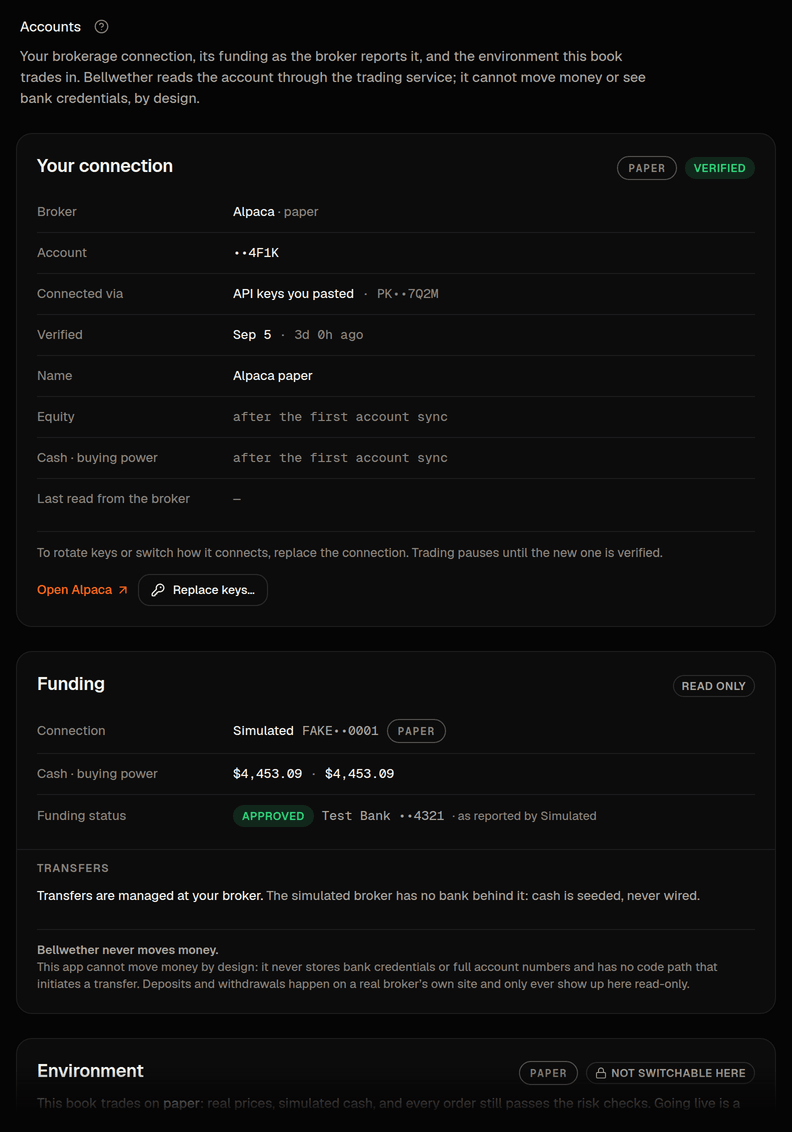
Accounts shows the account and its funding as the main column and two short panels beside them (under them on a phone):
- What happens next, only during a new book's first hour, and then first on the page: the same sentence and three steps as the last card of Connect.
- Your account: it opens with Can it trade now? and the answer in a sentence, then the account as labeled figures: the broker, the masked account number, the money it trades (Paper, real prices and simulated cash; the PAPER pill itself sits in the top bar on every screen), equity, cash, buying power and day trades against the allowance. The pill beside the title says whether the connection is healthy, with when the account was last read ("checked 4 min ago", or "not read yet" in the first minute after connecting). A button appears only when there is something for you to do on that screen: Reconnect when the connection stops working, Finish on Connect while it is still being tested, Start trading while trading is paused; when everything is fine there is nothing to press. A is explained, and resumed, from the banner at the top of every screen, so the panel points at it instead of repeating it. More about this account opens how it is connected (API keys you pasted, with the masked Key ID, or Sign in with Alpaca), the date it was verified, and how to change it: Replace keys… (or Change sign-in…) goes to Connect your broker, where Disconnect and the paste card live, and trading pauses until the new connection verifies. The account is read about once a minute by the part of Bellwether that talks to Alpaca; the screens never call the broker themselves. If the connection itself cannot be read for a moment, the panel says so with a reference and Try again instead of guessing.
- Funding, read only: one sentence for where funding stands and where transfers happen, and the one line that Bellwether never moves money; see funding your account.
- Going live: one sentence (this book trades paper money, and going live is a separate checklist, never a switch on that screen) and a link to what Go live checks.
- A second account: one book, one brokerage account; Add a book opens the same sheet as the book menu, and the new book starts on Connect with no connection until its keys verify.
The house book
On the house book, Connect shows "Nothing to connect": it trades with credentials the platform owner installed with the platform, on a paper account. Those credentials are the house book's alone: no other book can be pointed at them, and three separate layers each refuse it, so every other book is connected from its owner's own sign-in with its owner's own keys, and a new book has no connection at all until its owner's keys verify.
The environment check is not a : the Executor repeats it every time it opens the book, so keys swapped behind the same connection, or a record someone altered by hand, are caught before anything trades and the open is refused with the same alert. If you later generate new keys in Alpaca, the old pair stops working at once, the book halts, and Connect your broker opens with the fix for it (keys and safety).